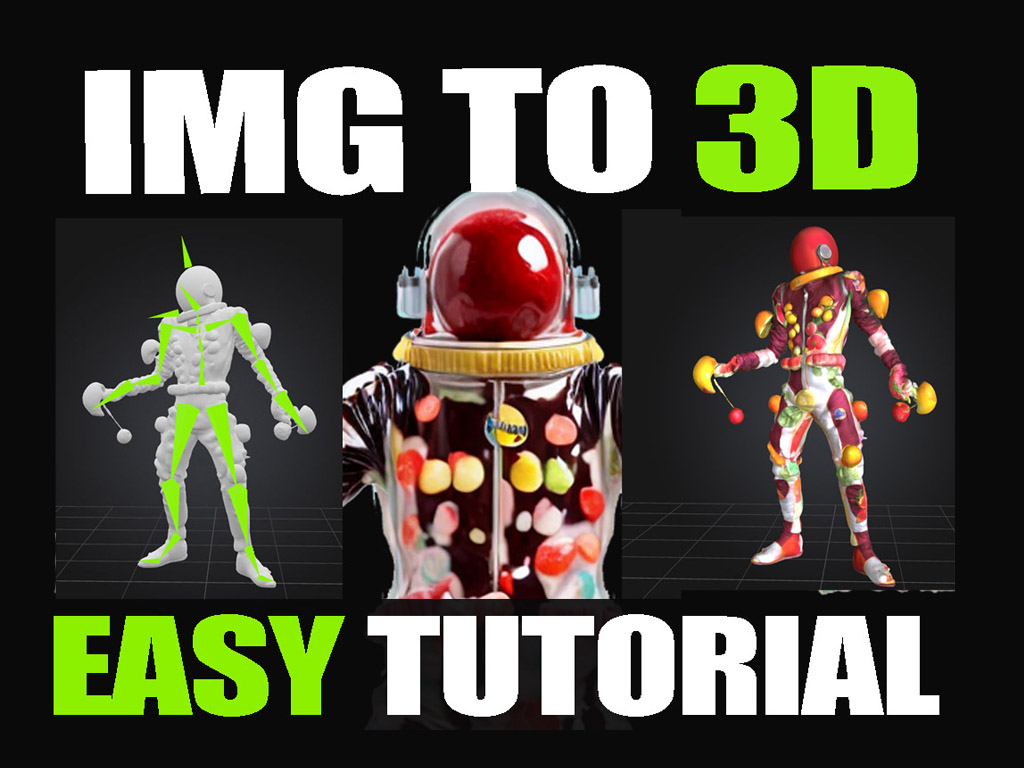
Welcome to ModdingSimulacra.art, your go‑to gaming and AI portal. Today we explore how to turn a simple text or image into a fully rigged 3D model, ready for Unreal Engine (UE4) or any game engine that supports FBX, OBJ, and other universal formats.
We’re independent and unsponsored—just fellow creators excited by the rapid advances in AI. While early image, music, and video models still show rough edges, each new release is sharper, faster, and more capable. After months of watching 3D generators mature, I dove in to discover the shortest path to a professional‑quality, animated model without spending a penny.
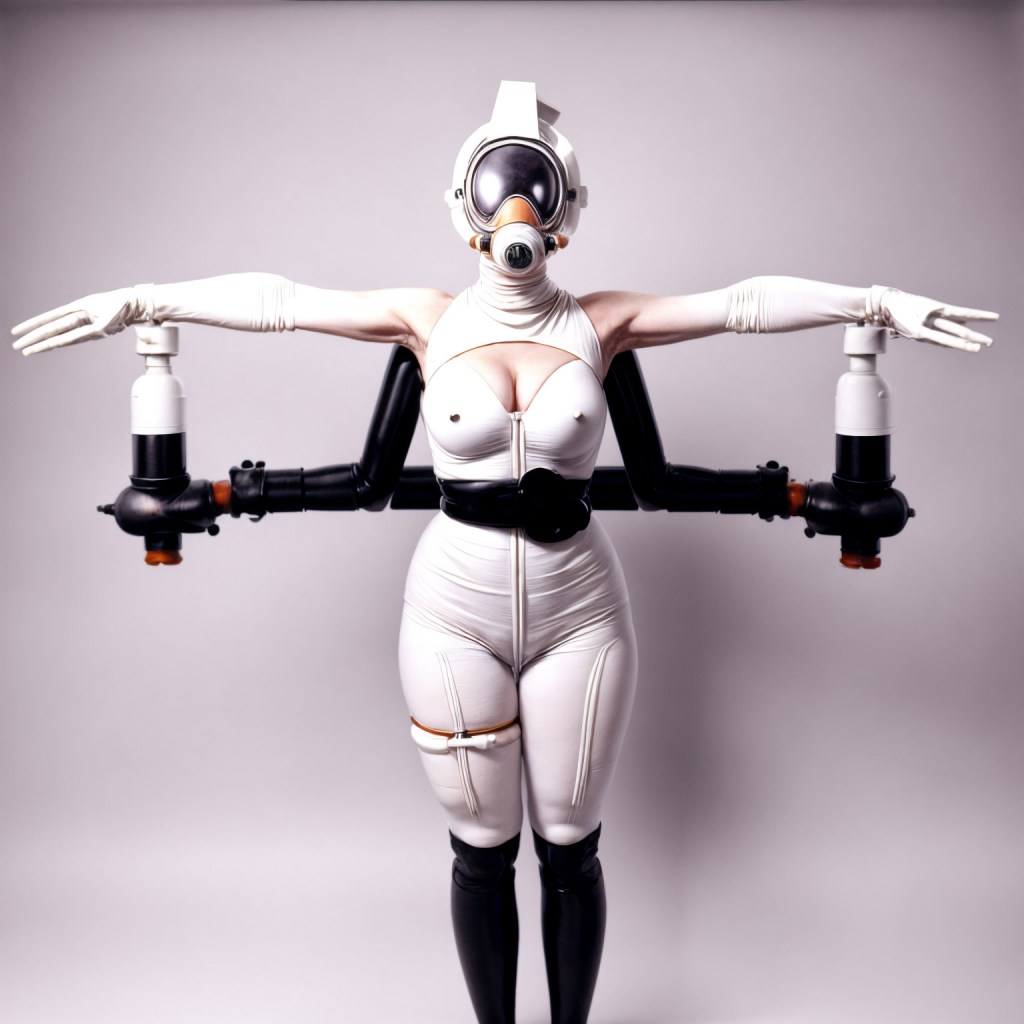
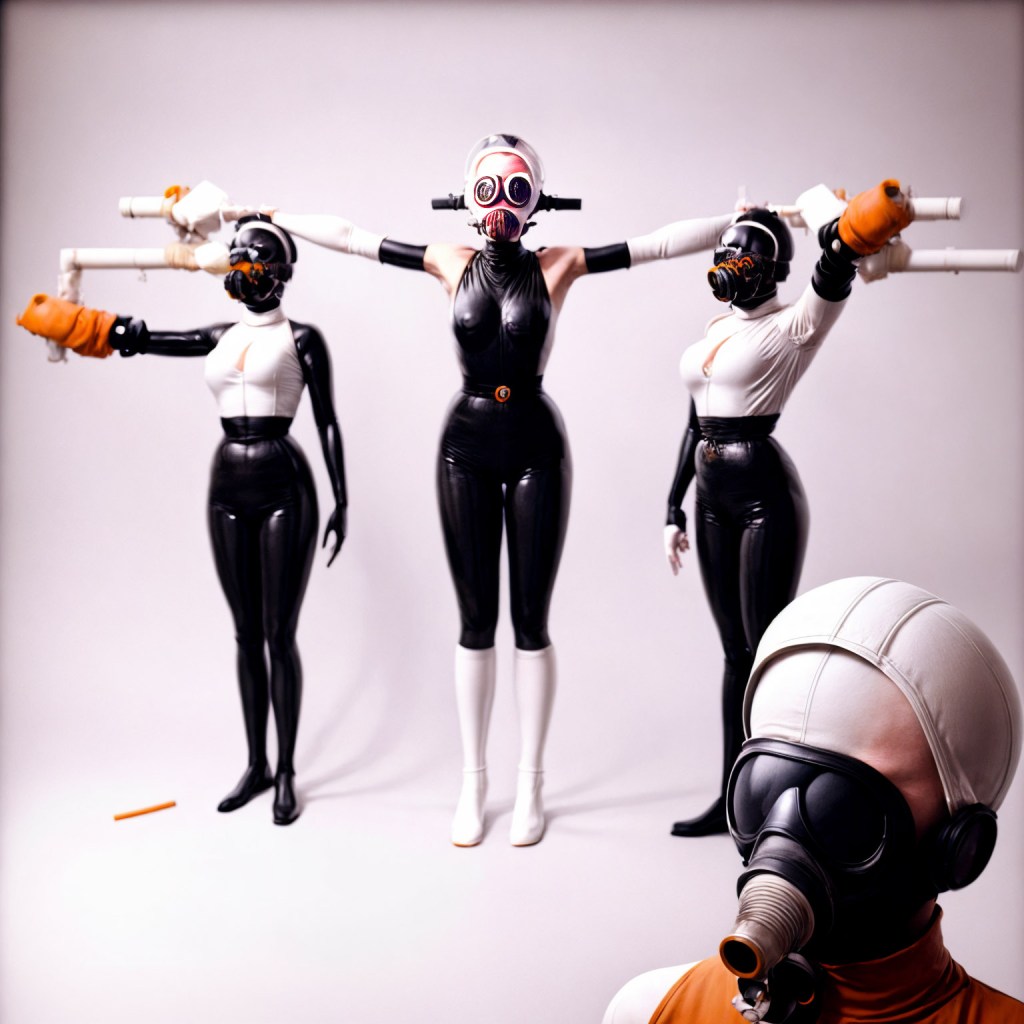
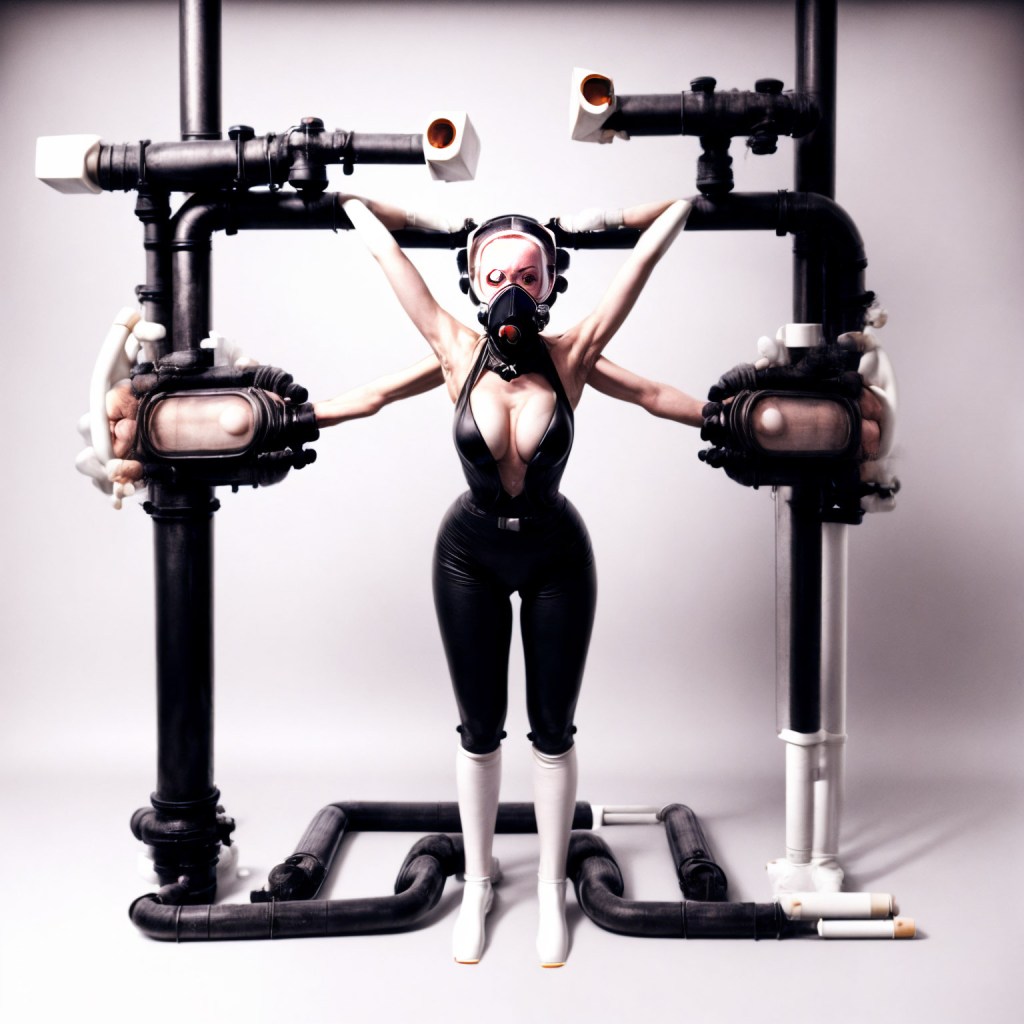
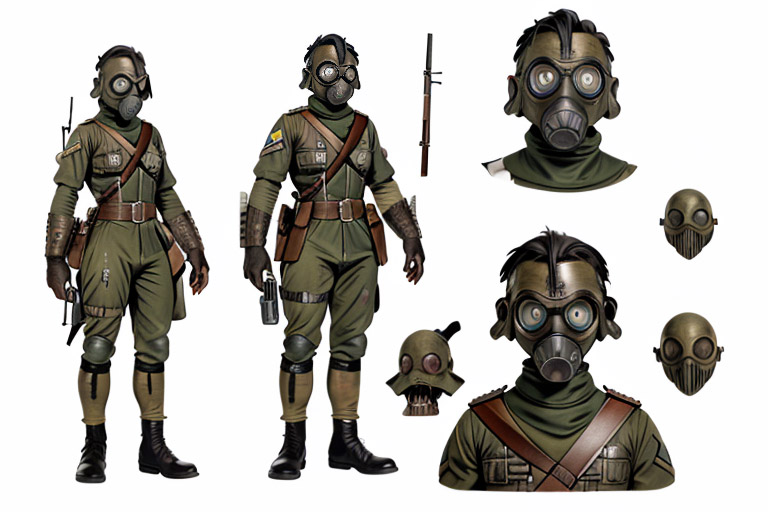
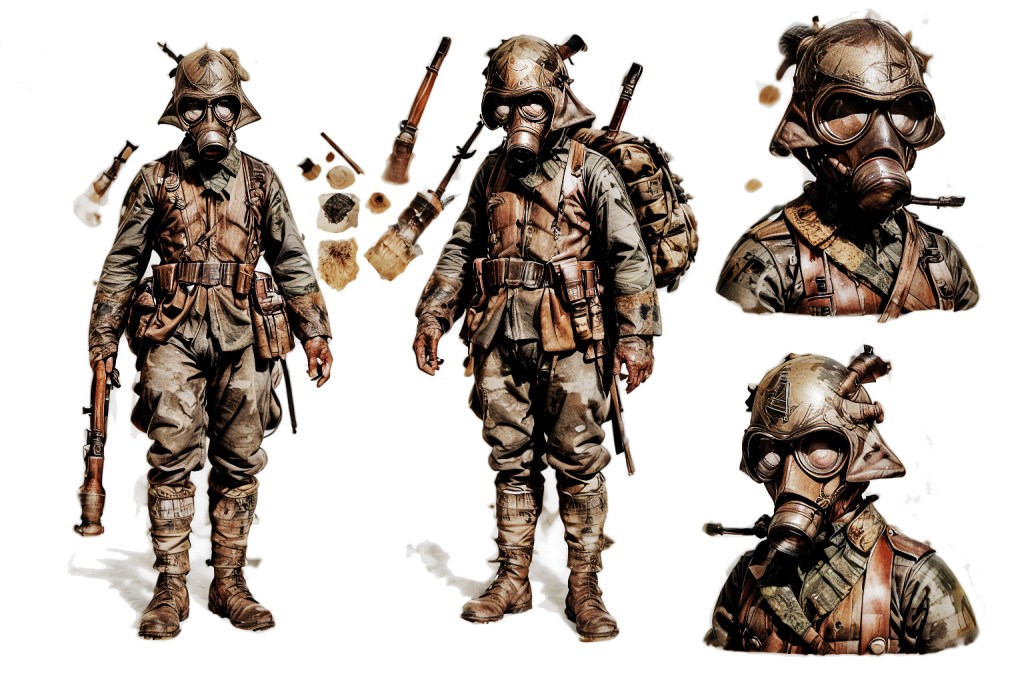
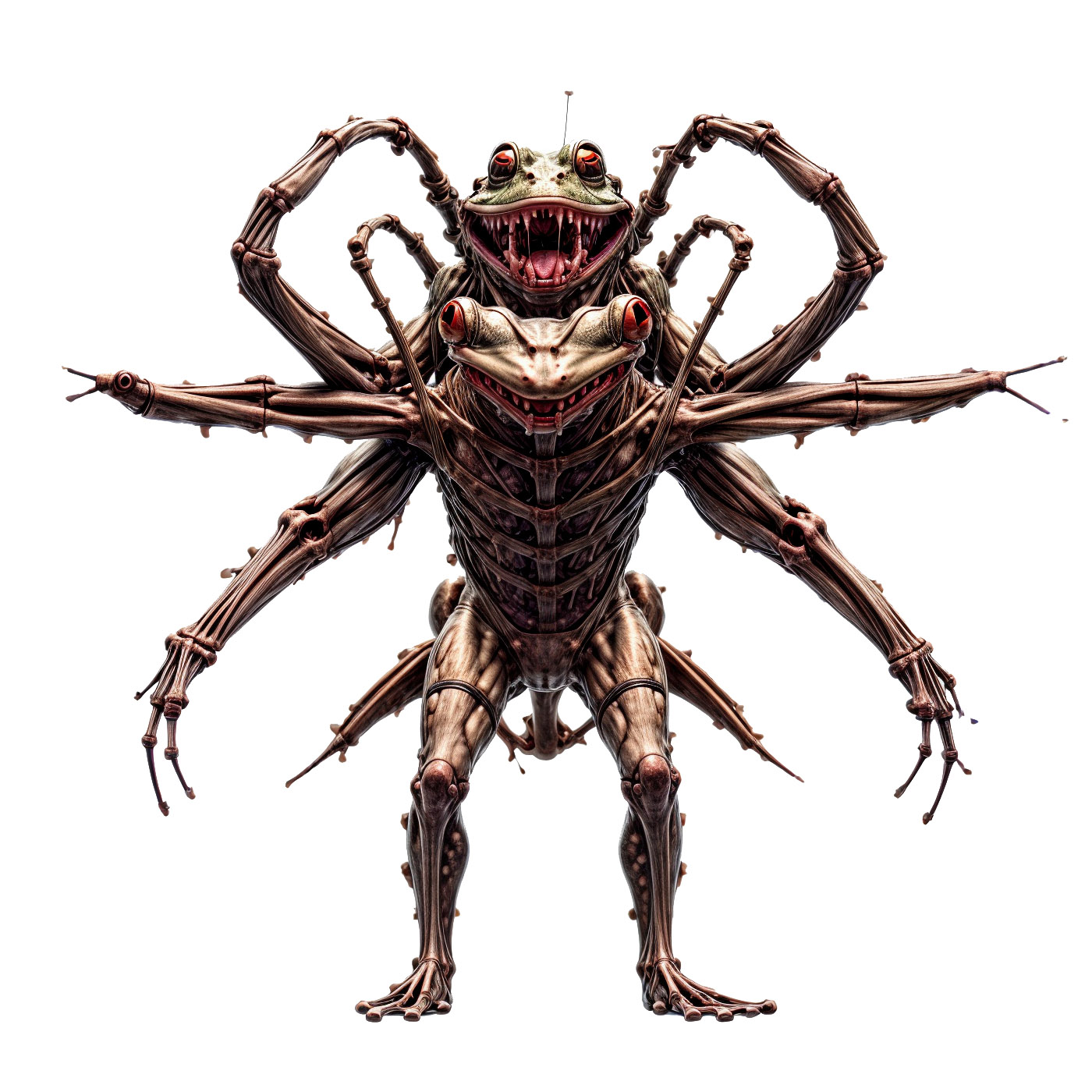
[concept image, good for brainstorm, but for 3D export T-Pose on transparent background is better]
What Is a 3D Mesh?
A mesh is the framework of a 3D object, made of vertices (points), edges (lines), and faces (polygons). Think of it like a digital sculpture: the more faces you add, the smoother the shape—but higher polygon counts can impact performance.
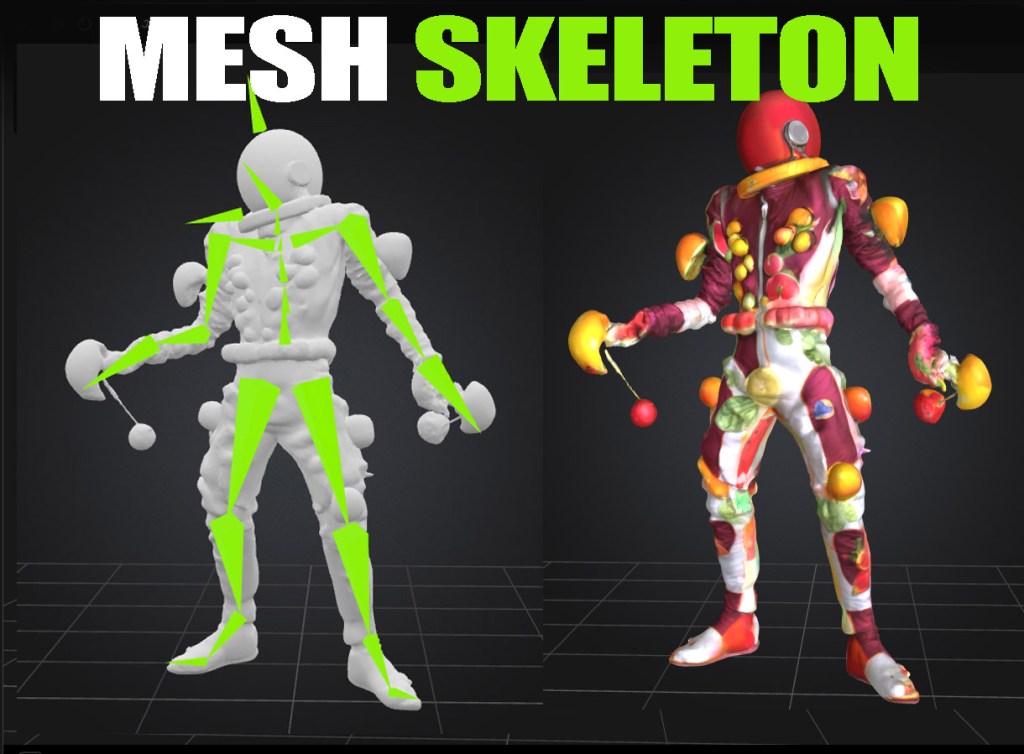
Materials & Textures?
A mesh alone is uncolored—like a raw statue. Textures (images) wrap around the mesh to add color and detail, while materials define how parts behave (rubber‑like, metallic, transparent).
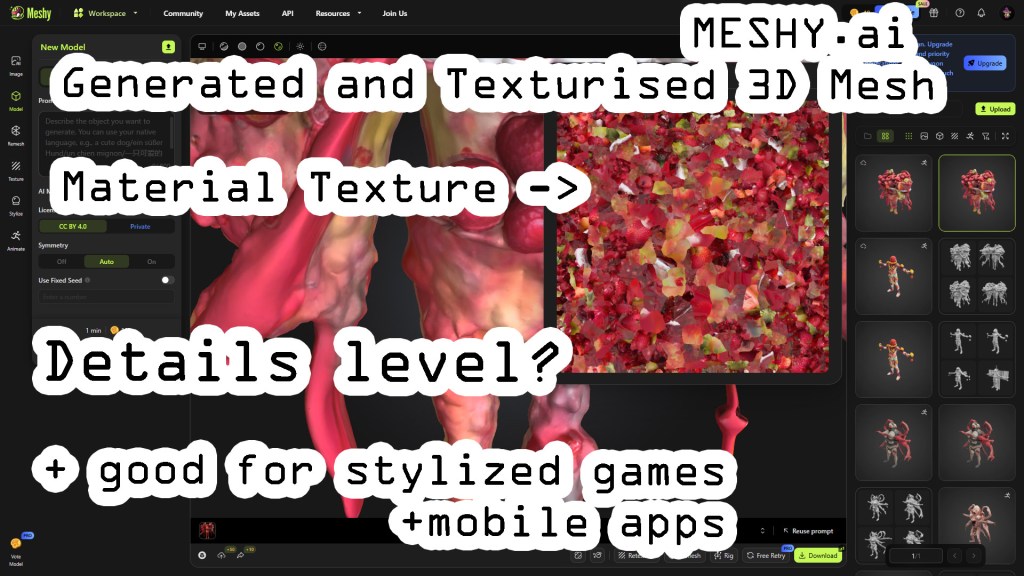
PART ONE: Quick & Easy Tutorial (Beginner‑Friendly)
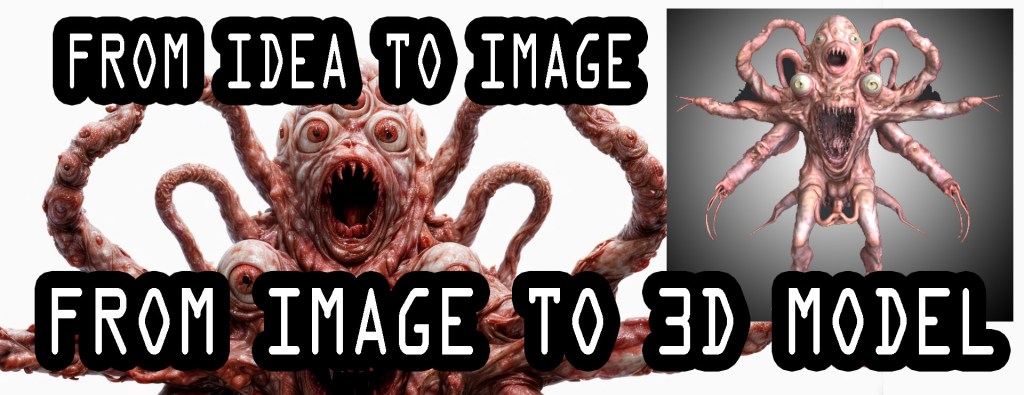
Follow these steps to generate and animate a 3D humanoid creature in minutes using free AI tools.

- Prepare Your Prompt
Ask ChatGPT to create an image prompt for a humanoid design in a T‑Pose. - Example:
"GPT, create a high‑contrast image of a horned monster in T‑Pose with transparent background."
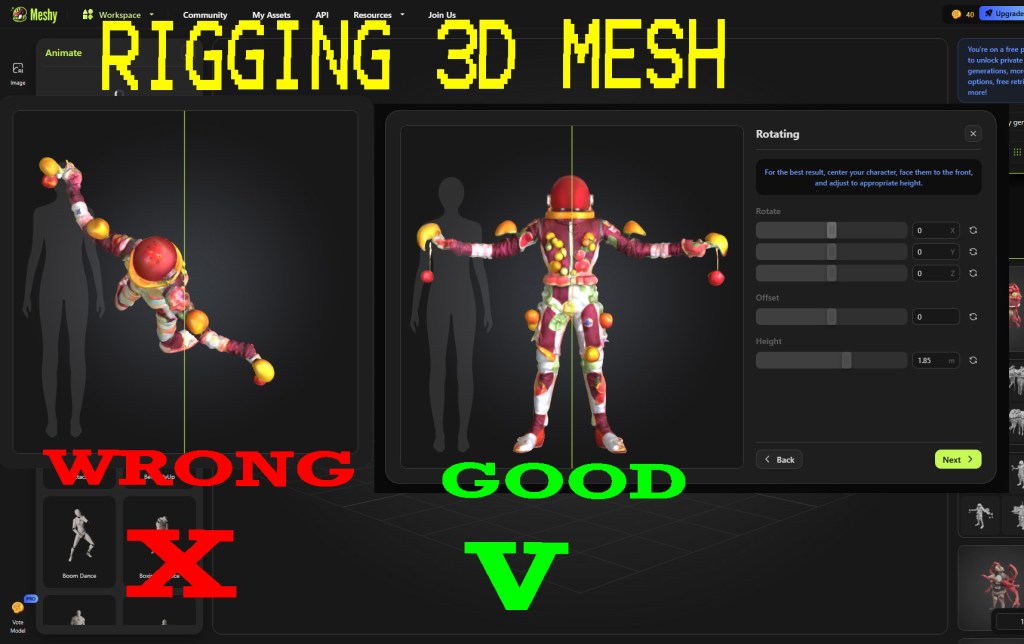
T‑Pose is the standard pose for rigging—arms outstretched, legs straight - Use Meshy.ai (Free Tier)
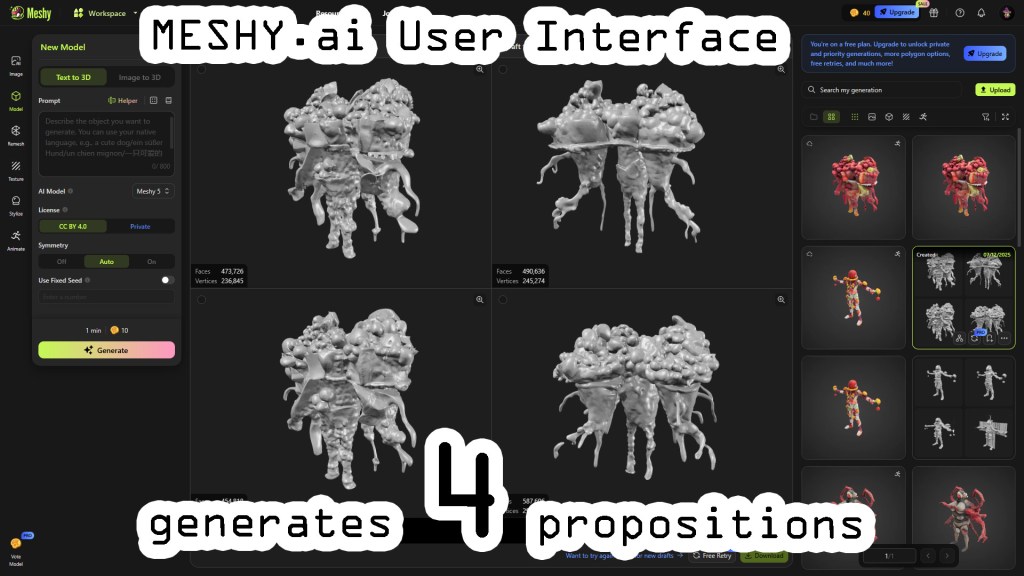
- Sign in (Google account works). Drag & drop your AI‑generated image or type your text prompt. Receive 4 untextured mesh variants.
- Select & Texture
- Choose the variant you like best.
- Click “Texturize” to add colors and materials.
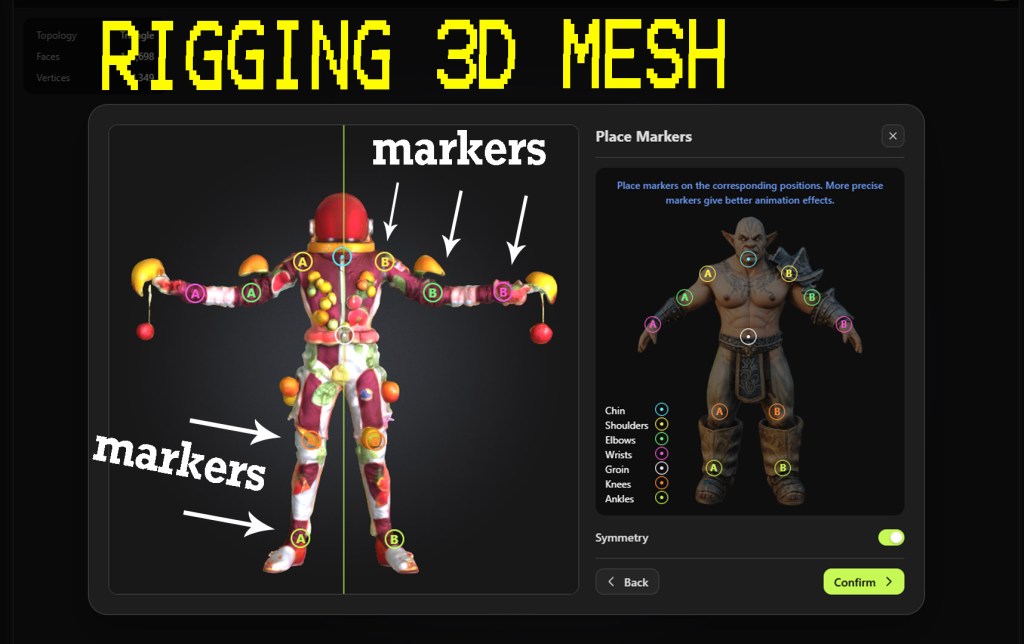
- Rig Your Model
a) Open the Rigging panel
b) Adjust scale with the slider to match human proportions.
c) Move markers on key joints—chin, shoulders, elbows, knees—to teach the AI your model’s structure - Download & Import
- Download your rigged, textured FBX or OBJ (free tier allows ONLY 10 downloads/month).
- Import into UE4, Unity, or your engine of choice.
What Is Rigging?
Rigging assigns a skeleton to the mesh by placing markers at joints (chin, elbows, knees, groin). This skeleton lets you animate limbs and gestures.

100 Free Credits – how much it is in meshy.ai?
Each action (texture, rig) costs credits—10 per action. You start with 100 credits for free and can earn more by sharing your work or engaging with the community.
Result
You now have a fully rigged, textured 3D character ready for animations. Ideal for stylized games, strategy titles, or any project where close‑up realism isn’t critical.
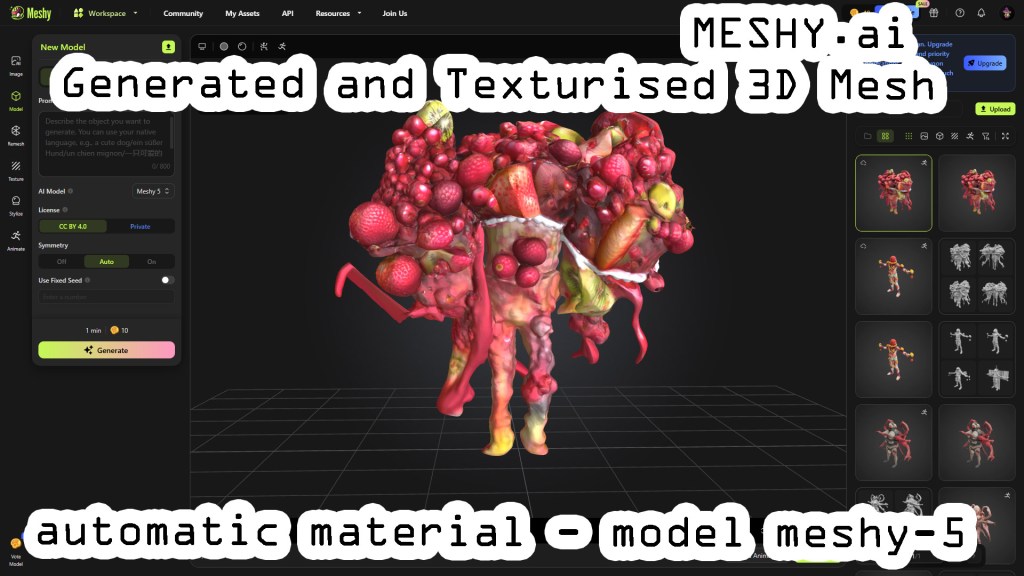
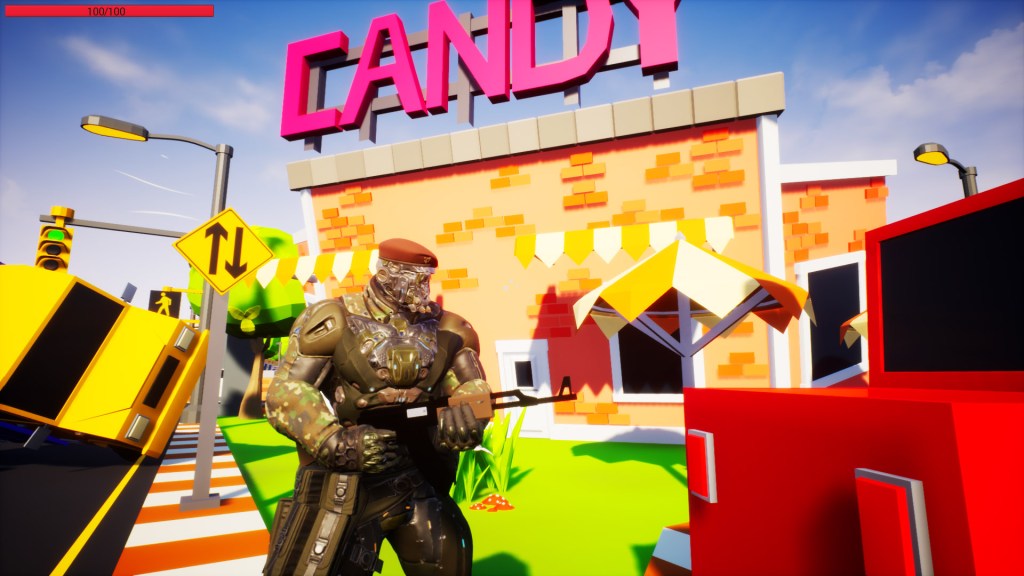
Picture above: ready-to-use 3D model with animations -> LINK
PART 2: Advanced Techniques (For Power Users)
Dive deeper into iteration, consistency, and optimization.
1. Iterative Image‑to‑Image Refinement
- Use Stable Diffusion 1.5 on your desktop (fast, detailed) or online image generator. Any image (of humanoid) with transparent background is acceptable.
StableDiffusion 1.5: A reliable LLM image generator you can run locally, even on modest hardware.
What Are SD 1.5 & Automatic1111 UI?
Automatic1111 UI: A popular web interface for SD 1.5, with extensions (LoRAs) specialized for themes like horror or sci‑fi.
[Link to SD 1.5] • [Link to A1111 UI]
[EASIEST WAY TO INSTALL DESKTOP AI? SEE PINOKIO BELOW!]
Pinokio AI Engines Hub
Pinokio (http://www.pinokio.ai) aggregates dozens of text, image, music, video generators with one‑click installs—ideal for experimenting beyond.
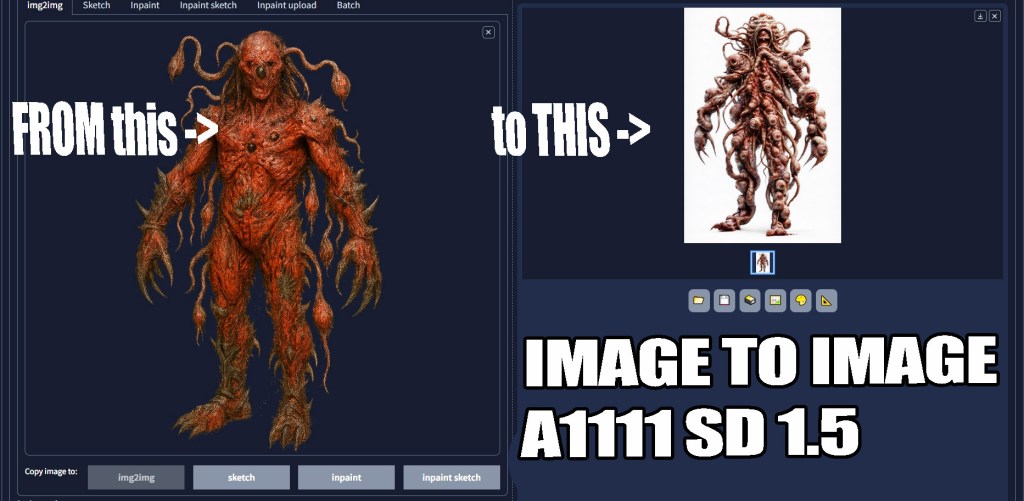
- Start with your base T‑Pose image. Use img2img at strength 0.35 for subtle variations or up to 0.75 for bold changes.

- Generate multiple waves of variants to maintain style consistency.
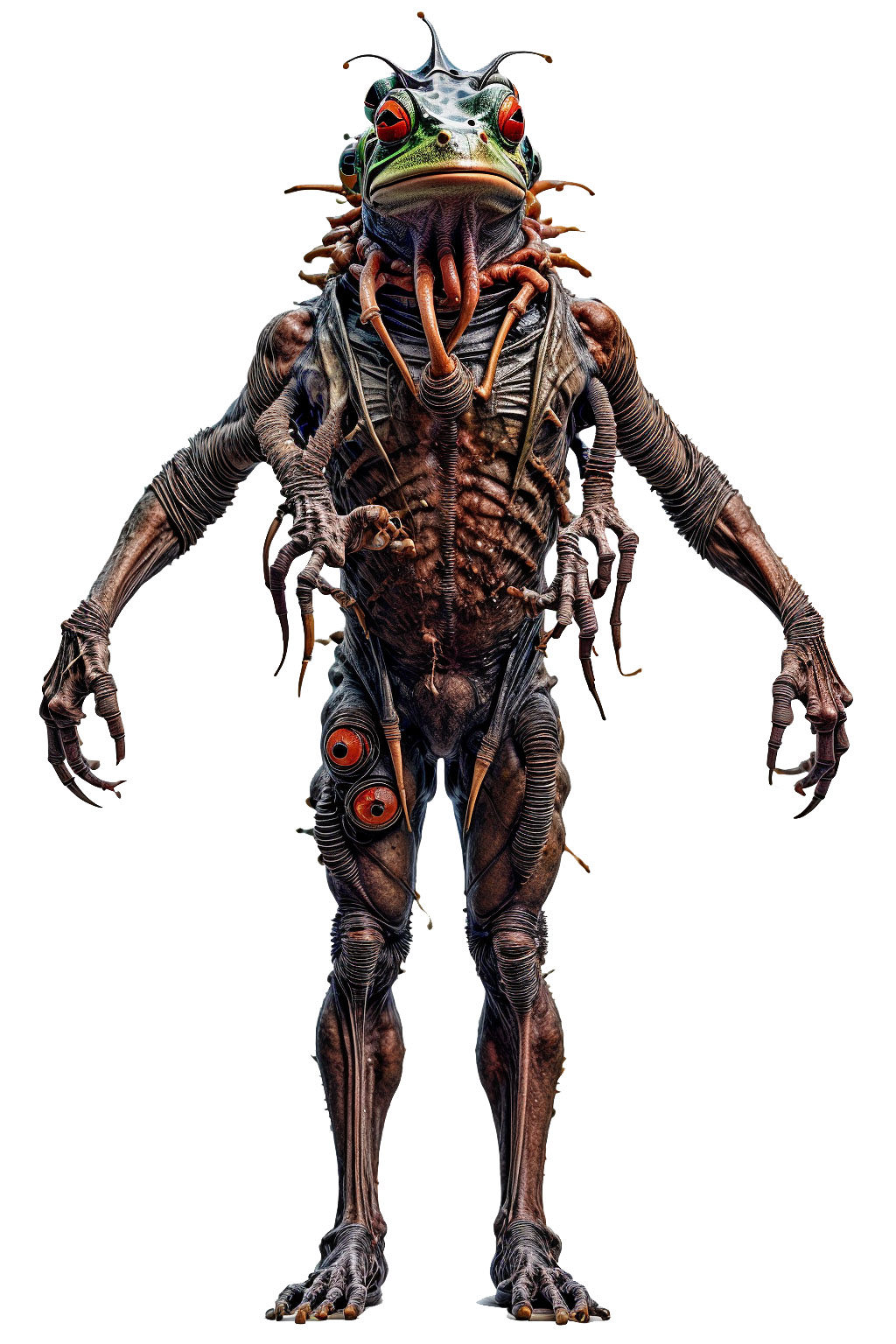
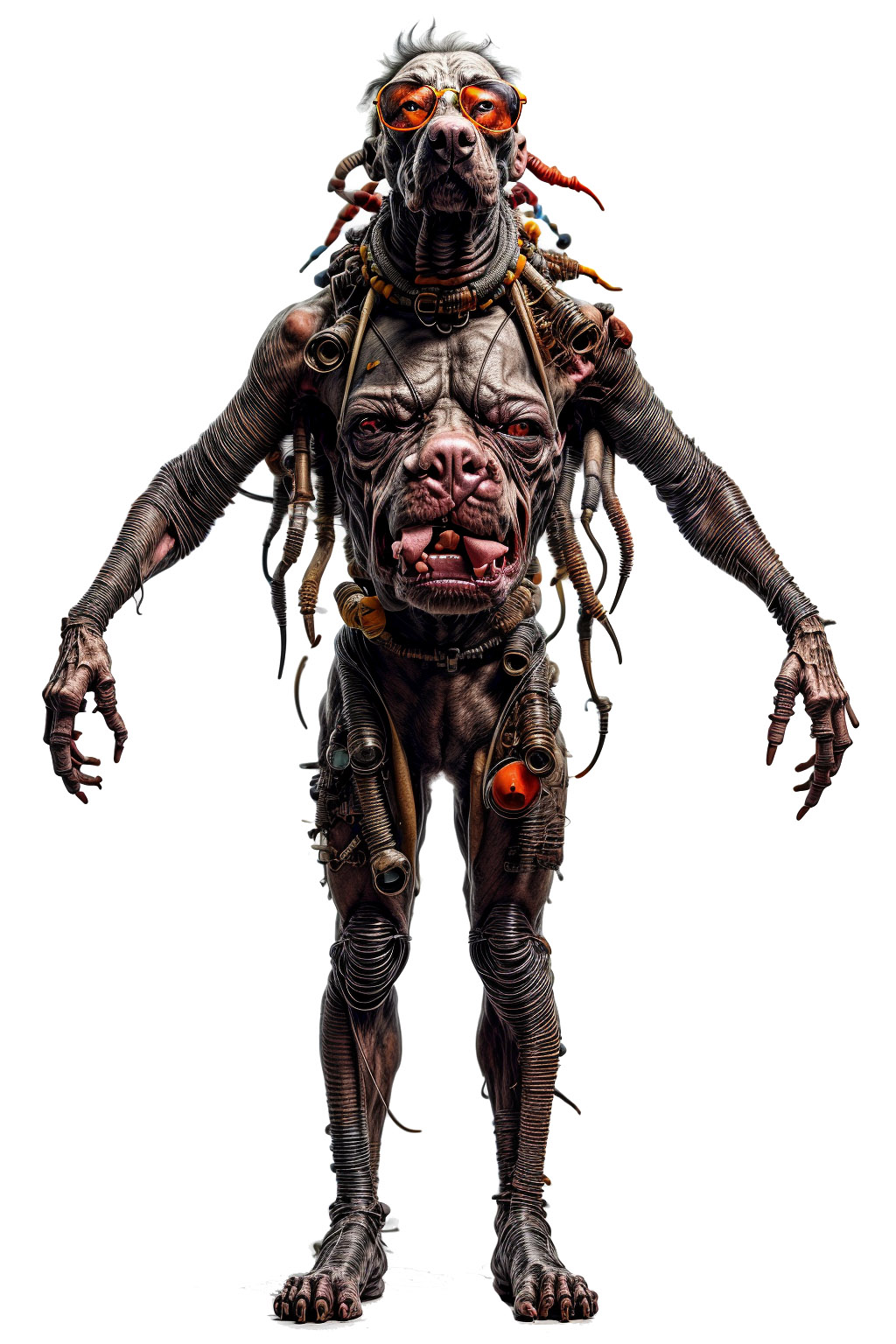
2. Streamlining Bulk & Consistent Creations
- To build a faction of similar characters, batch‑process your template through img2img with slight prompt tweaks (colors, accessories).
- Keep a prompt log to reproduce exact settings and LoRA extensions. (prompts are recorded in exported png files)
[slideshow: brainstorm – level one – concept arts]



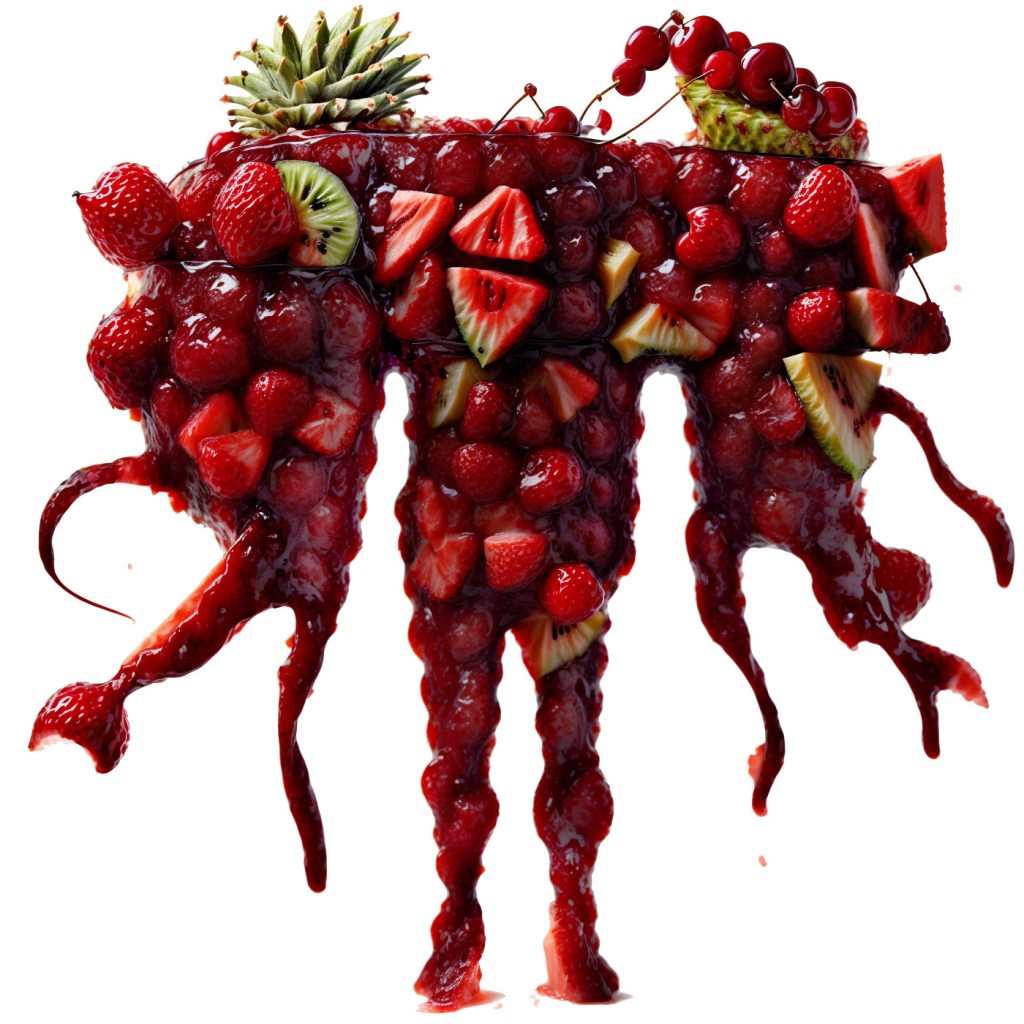

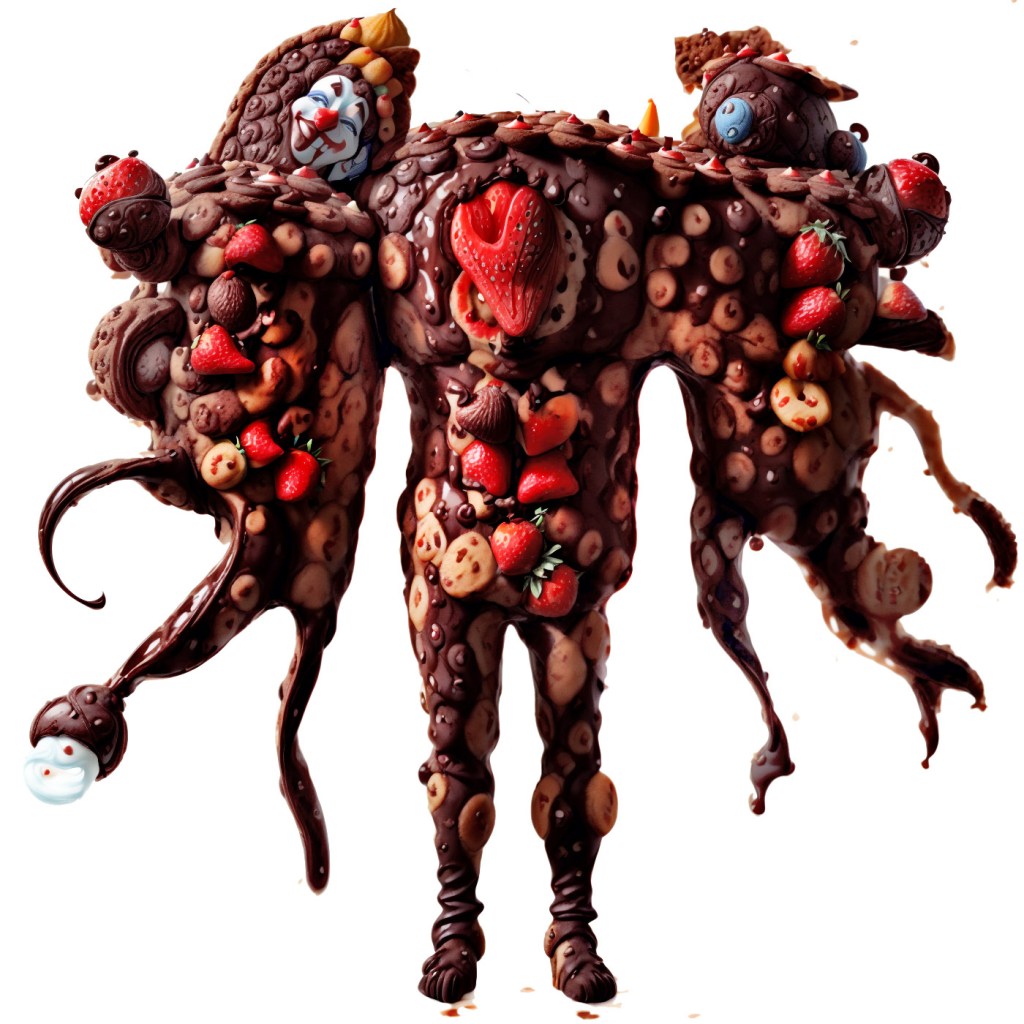
[slideshow: brainstorm – level four – iterations – inverted V arms -perfect pose for Unreal Engine]
3. Mixamo: FREE Models, Animations & Auto-Rigger
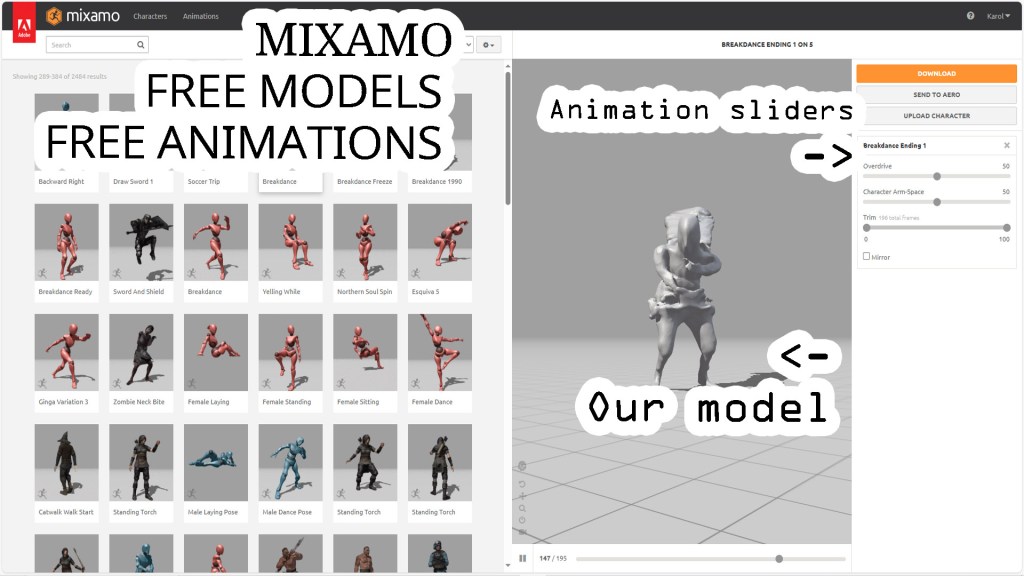
Mixamo (mixamo.com) is Adobe’s free online platform offering a vast library of humanoid models, animations, and an auto‑rigging service. It’s a one‑stop hub for beginners and pros alike:
- Free Model & Animation Library
Browse hundreds of pre‑rigged characters (humanoid and non‑humanoid) and a wide range of motion clips—from walks and runs to combat moves and gestures. Download any combination at no cost.
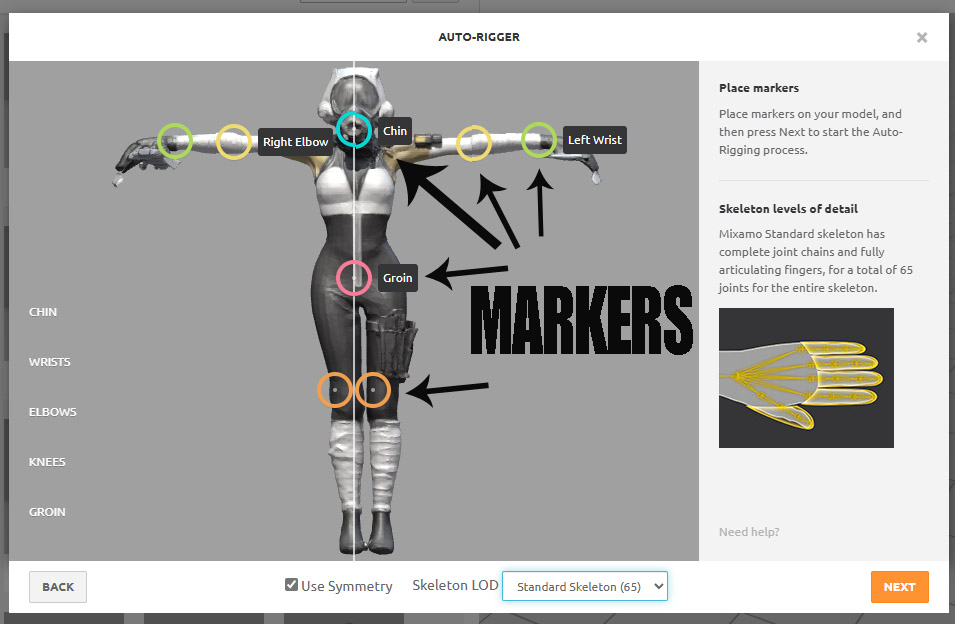
- Auto‑Rigging Your Mesh
- Upload your FBX/OBJ mesh to Mixamo.
- Quickly place five markers on joints: chin, shoulders, elbows, hips, and knees.
- Mixamo automatically generates a skeleton and skin weights in under a minute.
TIP Box: If Meshy.ai rigging fails, Mixamo’s robustness often succeeds. It was a pioneer in marker‑based rigging and remains the industry standard.
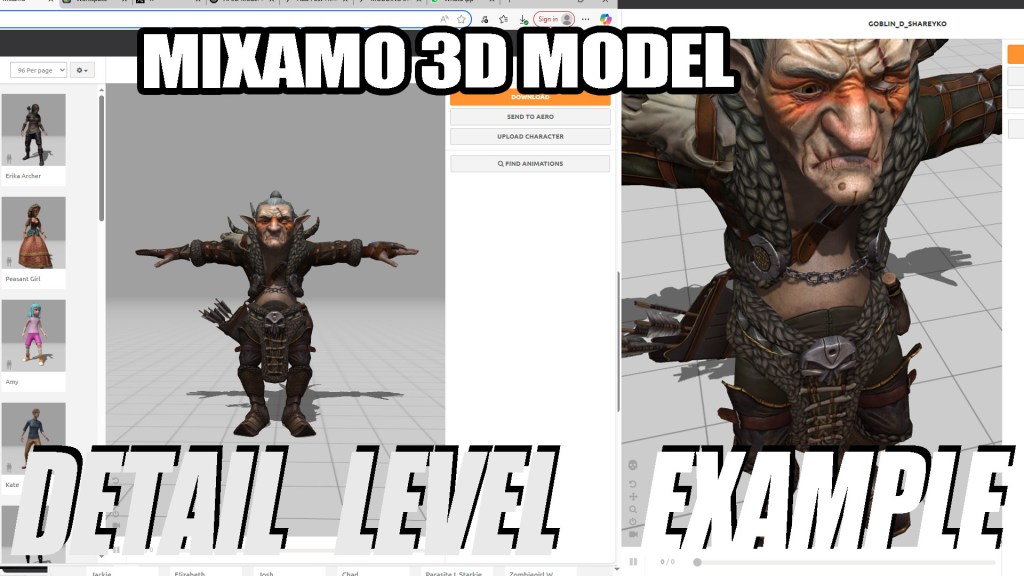
- Applying Animations
- Select from dozens of free animations.
- Preview in‑browser on your uploaded mesh.
- Adjust animation speed, looping, and arm‑spacing before download.
- Transferring to Unreal Engine
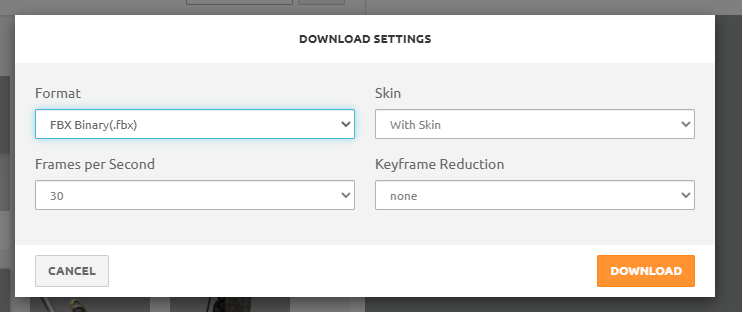
- Download Settings: Choose the “FBX 7.4” preset to get correct bone naming conventions.
- Import Workflow in UE4/UE5:
- In the Content Browser, choose Import and select your Mixamo FBX.
- In the Import Options, ensure “Import Mesh”, “Import Animations”, and “Skeleton” (if reusing an existing one) are checked.
- Retargeting (Optional): Use UE’s Retarget Manager to map Mixamo bones to UE’s Mannequin skeleton for compatibility with Marketplace assets.
- No Credit Management
Mixamo is entirely free—no credits or subscriptions required. Perfect as a fallback rigging service or animation source when other AI tools exhaust free tiers.
Why Use Mixamo?
- Beginner‑friendly UI with instant feedback.
- Huge community‑contributed asset pool.
- Direct pipeline into Unreal Engine with minimal setup.


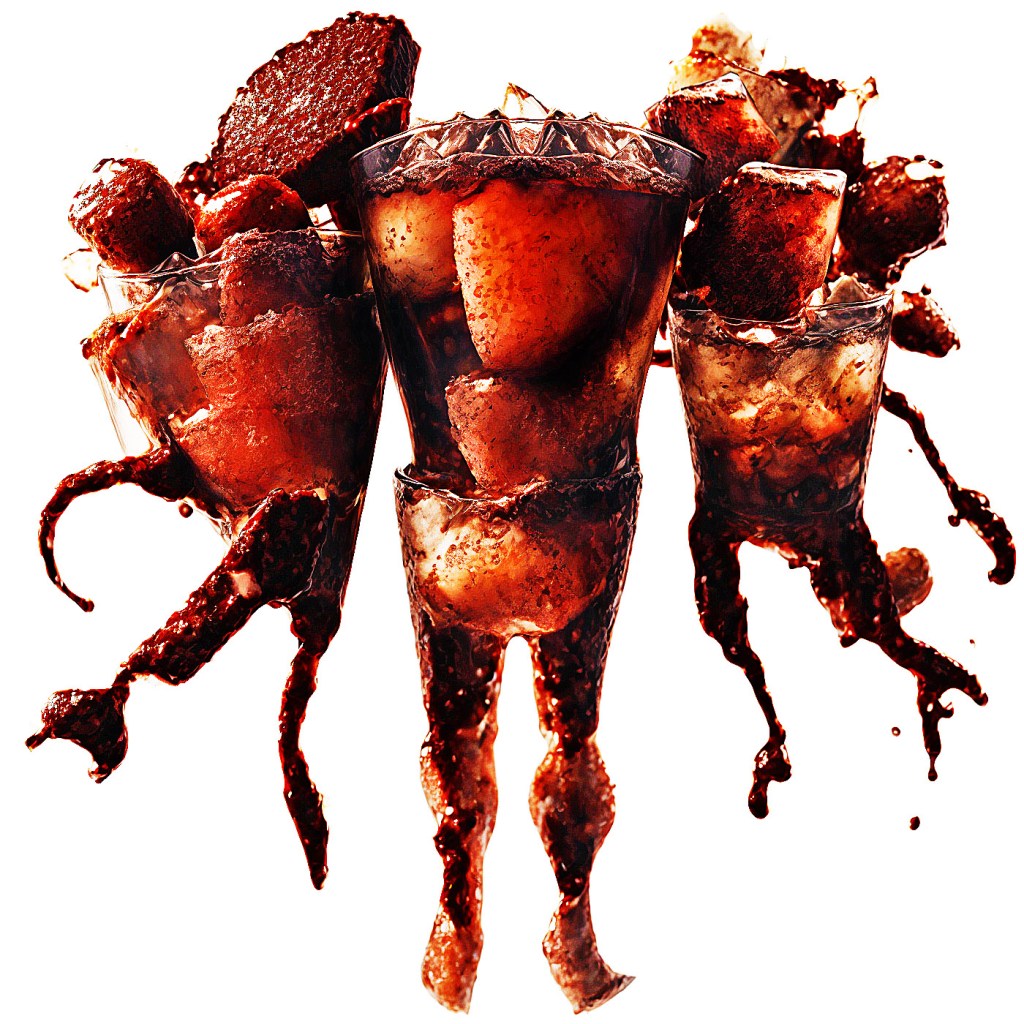
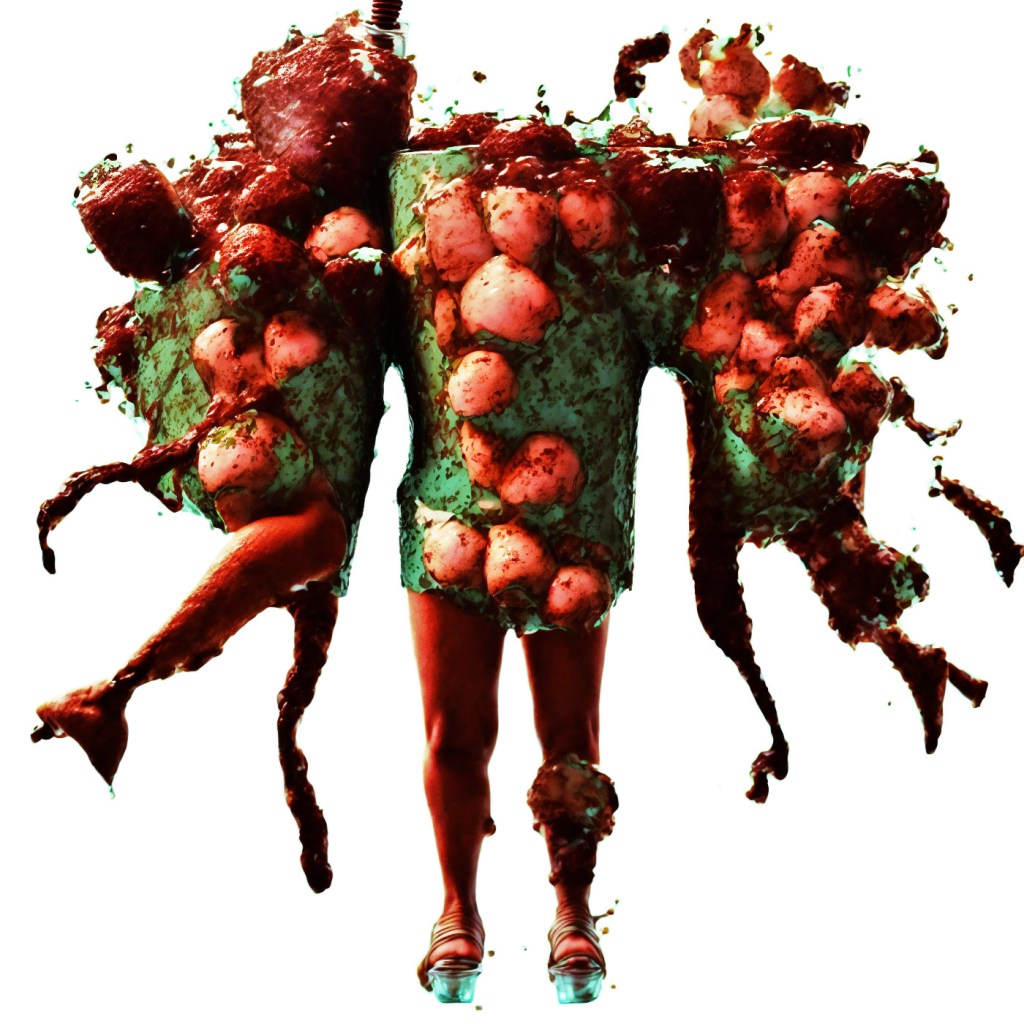
[slideshow: very tasty monsters, variants from img2img method]
4. Engine‑Specific Optimization
- Unreal Engine: Use the Mixamo‑Unreal4 converter for seamless bone mapping. (it is a 3rd party plugin, optional)
- Performance: Aim for 10k–20k triangles for NPCs in top‑down or strategy games; higher detail suits close‑up cinematics.
5. Exploring Desktop 3D AI Generators
- Early desktop 3D tools offer mesh creation but often lack texturing or rigging. Worth a separate deep‑dive article.
I have plenty of image projects ready to be transferred into 3D meshes. Maybe we should use them to make a simple game? Social? FPS?
Final Thoughts
AI‑powered 3D modeling won’t replace professional artists any time soon, but it’s a powerful new tool for indie devs, modders, and hobbyists. Whether you’re populating Paradigm Worlds with your own creatures or prototyping characters for a game jam, AI will expand your creative bestiary.
LINKS TO APPS MENTIONED IN ARTICLE
A111 UI FOR STABLE DIFFUSION 1.5 (link) – NOTE: For beginners, I strongly recommend Pinokio.ai. It is a library with one-click installations of various GEN-AI models. These range from images to music. Free versions for desktop pc.
DISCLAIMER!
We – modding simulacra – support REAL human beings creations too 🙂
Check our initiative to show most interesting assets – surprise – made by HUMANS! It is called PARADIGM PLAYGROUNDS and all presented creations are not just ‘described’. They are all PLAYABLE for FREE. Yes, isn’t it amazing? Real assets, human-made, ready-to-play? And for free?
Am I mad? Do I lie? Is this is some evil trick? NO 🙂
That’s modding simulacra, my friends!
LINK TO ARTICLE – REAL HUMAN-MADE ASSETS SHOW
LINK TO DOWNLOAD SITE
LINK TO YOUTUBE PARADIGM PLAYGROUNDS PLAYLIST
See? All this for puny humans 🙂
Pick your favourite 3D mesh project on YouTube poll, an see it alive!

 MODDING SIMULACRA
Leave a comment